0.68.0 - A stick for the pointer
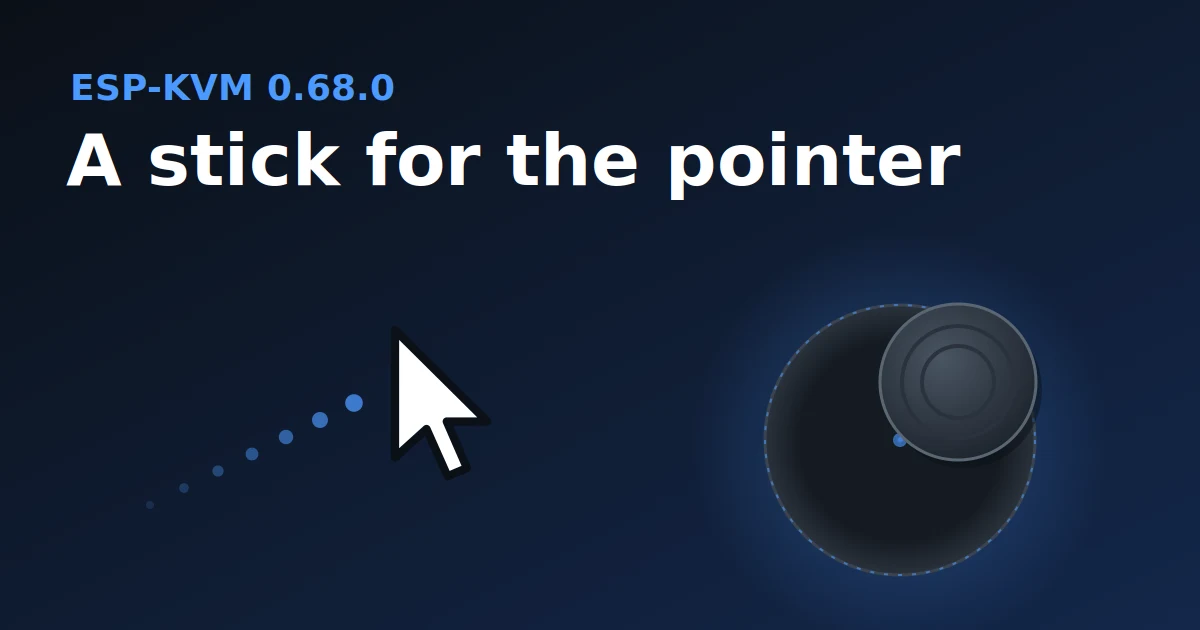
On a phone the touch mode moves the target's pointer like a laptop touchpad: you drag, it follows the finger. For a long way across a big screen that takes a lot of swiping. In 0.68.0 there are two more ways to move it, both off until you turn them on.
A stick on the screen
Turn on Stick in the touch controls. Put a finger down anywhere on the picture, and a stick appears under it. Push the finger away from that point and the pointer moves: a little off centre is slow and exact, far off is fast. Hold the finger still off centre and the pointer keeps going. Let go and the stick is gone.
Taps, long press and two-finger scroll and zoom work as before. The stick works with a mouse too: hold the left button and drag.
A game controller
Plug a controller into the computer or phone you watch from, and a new button appears under the picture. With it on, the left stick moves the pointer and the right stick scrolls. The bottom face button is the left click (hold it to drag), the right one is the right click, the left one the middle click. The right shoulder button slows the pointer down while you hold it. The cross sends the arrow keys, Start is Enter and Back is Esc.
This is for a sofa and a TV, or for a phone in a controller grip. Relative sensitivity in Settings -> Input sets the speed for both the controller and the on-screen stick. When the controller already goes to the target as a USB gamepad, it stays a gamepad.
Sound in recordings
In 0.67.0 the console got the target's sound as Opus, and recordings got it as AAC from a second encoder. With both on, the two encoders took a big part of the CPU, and the picture lost a few frames a second. Now there is one Opus encoder, and the recording takes its sound from it.
Recordings and dashcam clips now have stereo sound, in the .ts and in the MP4. VLC and ffmpeg play both. Recordings made with 0.67.0 keep their AAC and still play in the console and convert to MP4.
Find this screen
On a target with two monitors the absolute pointer covers the whole desktop, and Settings -> Input -> Several screens -> "Find this screen" works out where the captured screen sits.
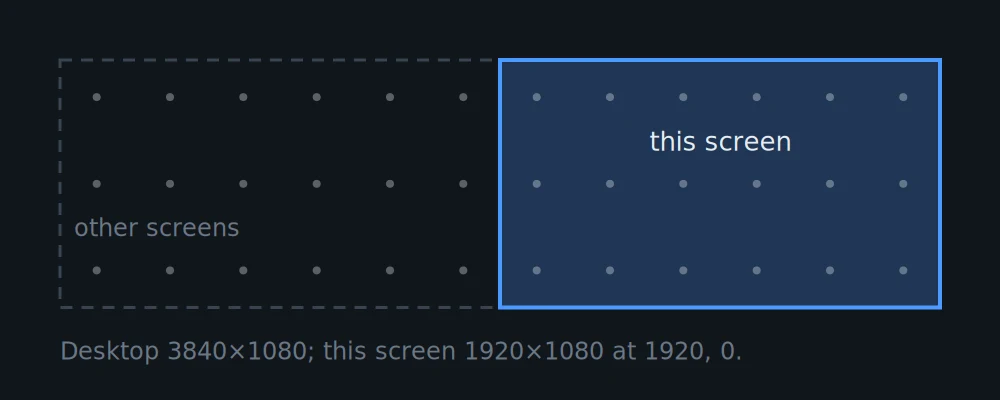
It got this wrong about half the time. On a slow picture it took the cursor from the step before. A button that lit up under the pointer moved the result. A clock in the taskbar counted as a cursor.
Now each step waits until its own move shows up and the picture goes still. At each point the pointer moves a few pixels to the right, and the cursor is the only thing that changes between those two pictures. Before it starts, it watches the still screen for a second and a half and leaves out whatever changes on its own. It takes longer now, about half a minute.
One more thing
With Offer firmware updates on, the console tells check.espkvm.io once a day a random id of the device, its board and its version, so I can see how many devices are in use. The id is not taken from the hardware, and a settings reset makes a new one. The device itself sends nothing.
Comments